First time setup
Welcome Wizard
When starting the device for the first time or after a factory reset you’ll be greeted by the WelcomeWizard. The purpose of this wizard is to get the device connected to a WiFi network. This setup only need to be done once, the device will permanently save your WiFi credentials until you decide to delete them. The following steps will guide you through setting up your device.
Powering on
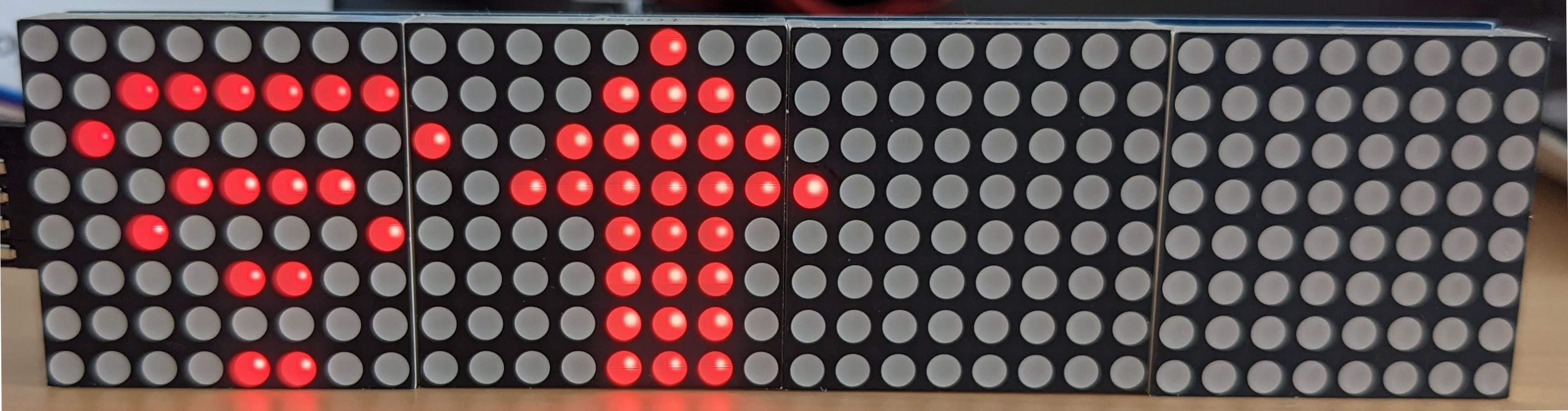
Apply power to the USB port of your device. The device will start up and present you with a WiFi icon and an up arrow on the screen. This means that the device is uninitialized and the WelcomeWizard has started.
Connecting to the Access Point
The device creates a WiFi access point with the following details:
SSID |
aura SmartClock |
Password |
supersecret |
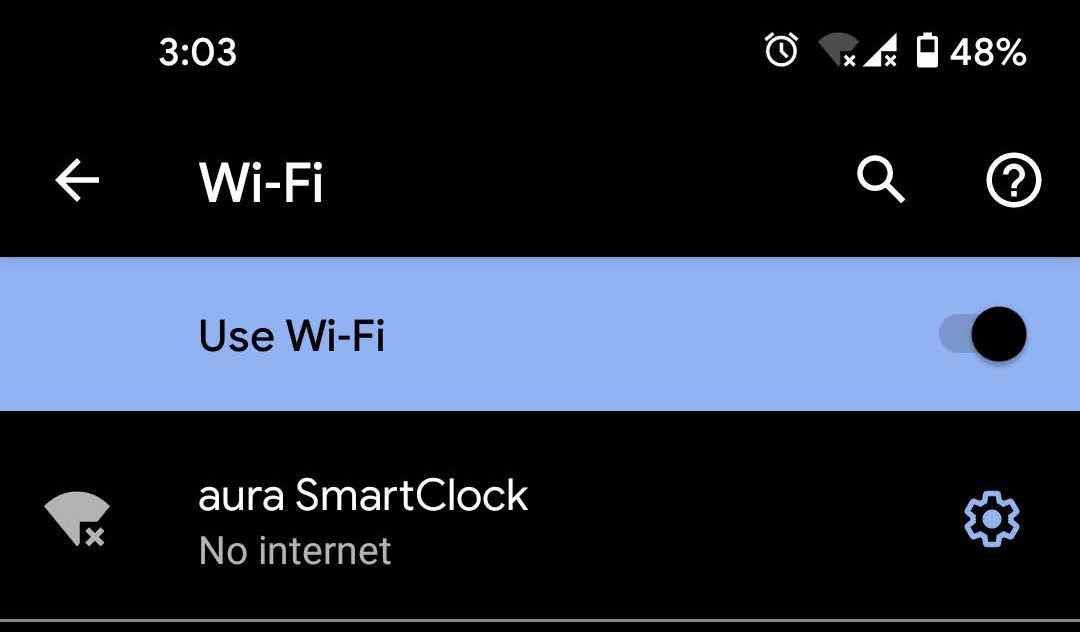
Connect to this access point with either you smartphone or computer and navigate to the following IP address:
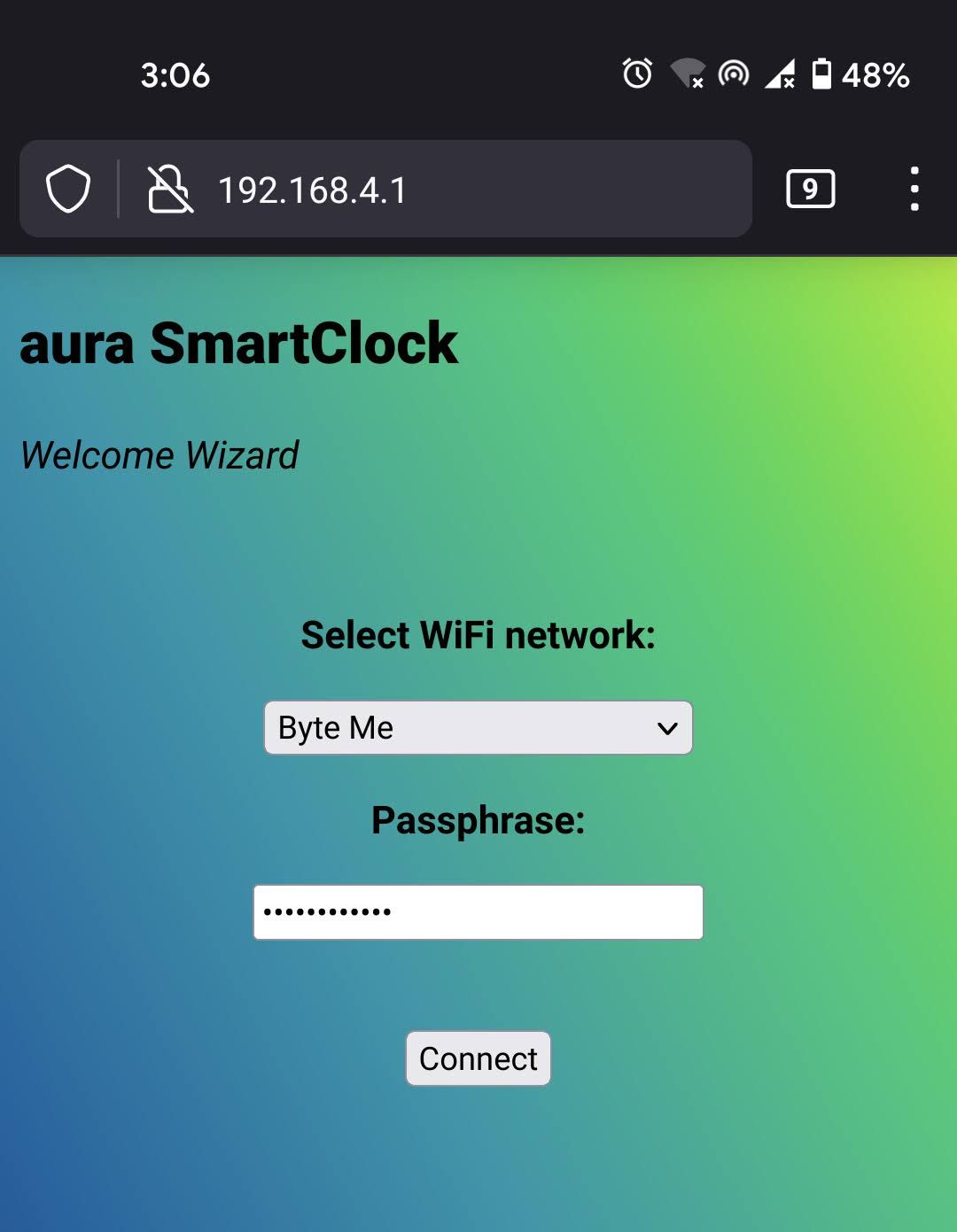
192.168.4.1 |
Setting up WiFi
Upon navigating to 192.168.4.1 you’ll be presented with the WiFi setup page. Select your WiFi network from the list, enter your password and click Connect. The device will attempt to connect to the selected network. If the connection was successful the device will save the provided credentials, tear down the WiFi AP and reboot in normal mode connecting to the selected network. However if the connection fails the device will show you an error message on the screen and on the webpage - letting correct any details before trying again.
Ready to use
After completing all the steps above your device is ready to use! You won’t have to enter your WiFi credentials again even after rebooting or losing power.